
Improving Your Member Experience Across All ASAE Web Properties
ASAE uses a single sign-on process (SSO) through Microsoft Azure. SSO lets you log in once on any ASAE web property, such as this website, Collaborate, AGI, and more, and be recognized across our other sites and systems without having to log in again each time.
The first time you log in with SSO, you will need to update your password. Please follow the steps below to complete this one-time process.
Resetting Your Password for Your First Login
Tap or click the LOGIN link on any of our sites or properties to sign in with single sign-on.
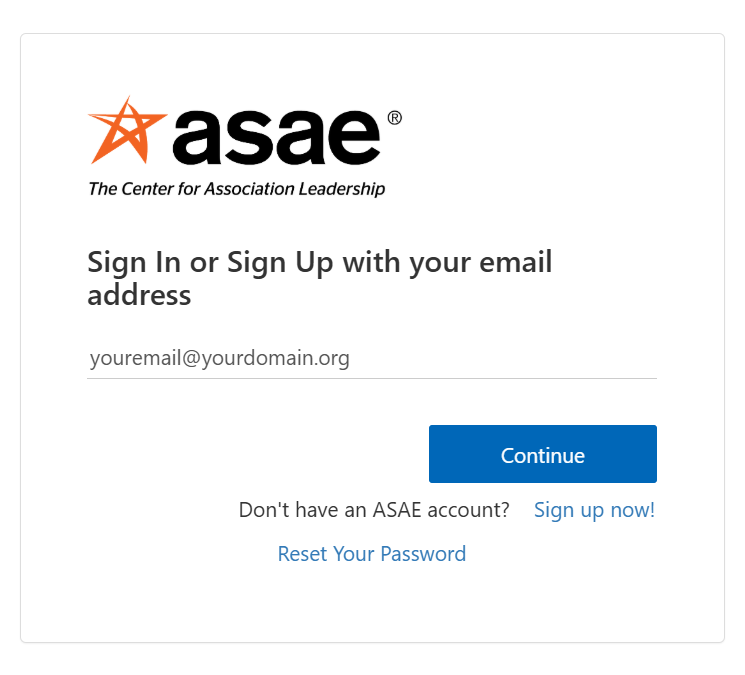
1. Enter Your Email to Start the Password Reset Process
From the main screen shown here, enter your email and tap/click Continue.
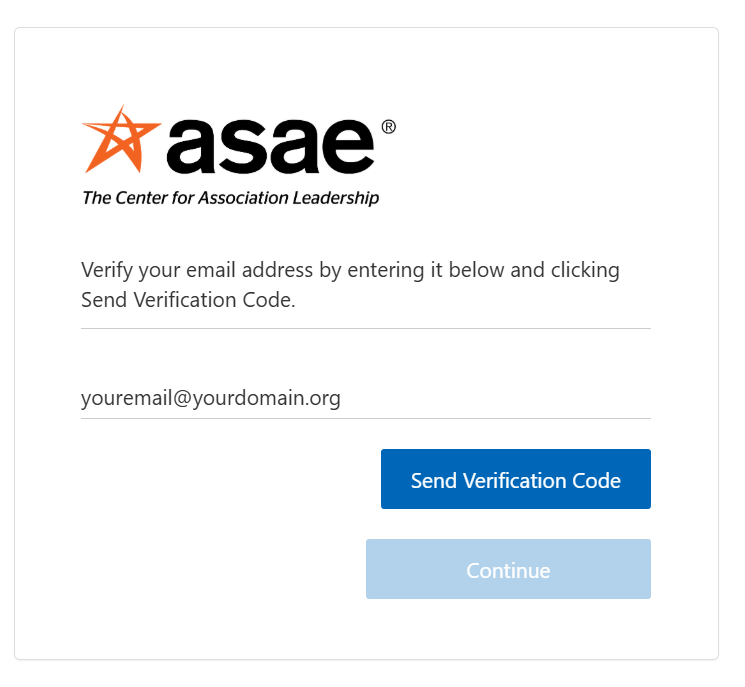
2. Send a Verification Code to Your Email
Tap/click the button to have a verification code sent to the email address you’ve entered.
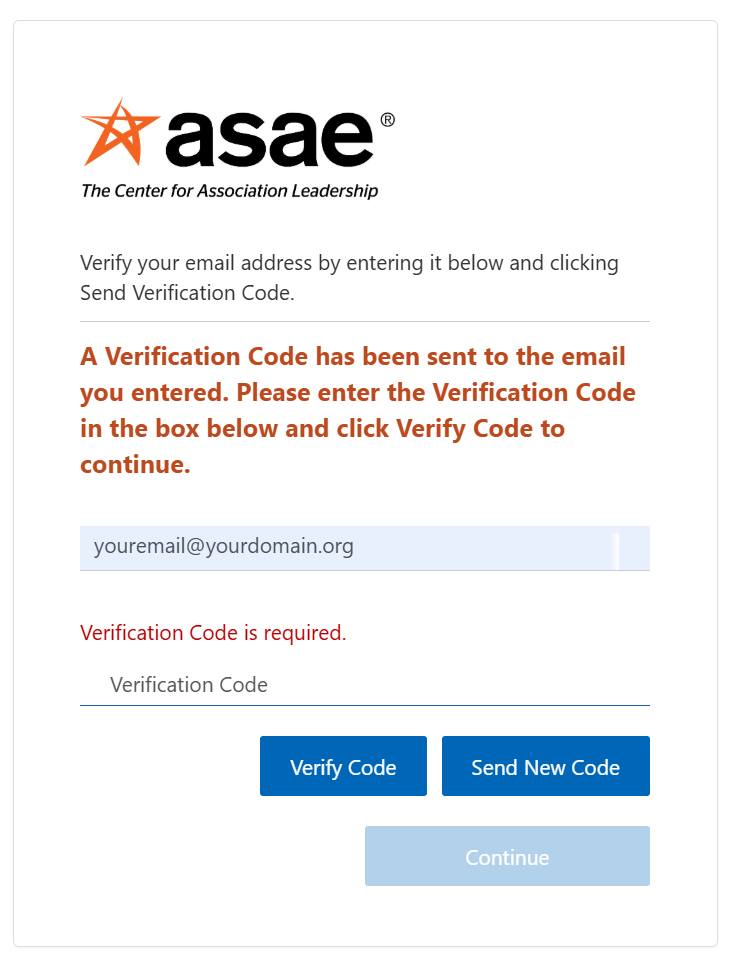
3. Verification Code Has Been Sent
After tapping/clicking the button, a message is shown indicating that a code has been sent to your email. If you do not see a verification code email in a reasonable time, you may send a new code from this screen.
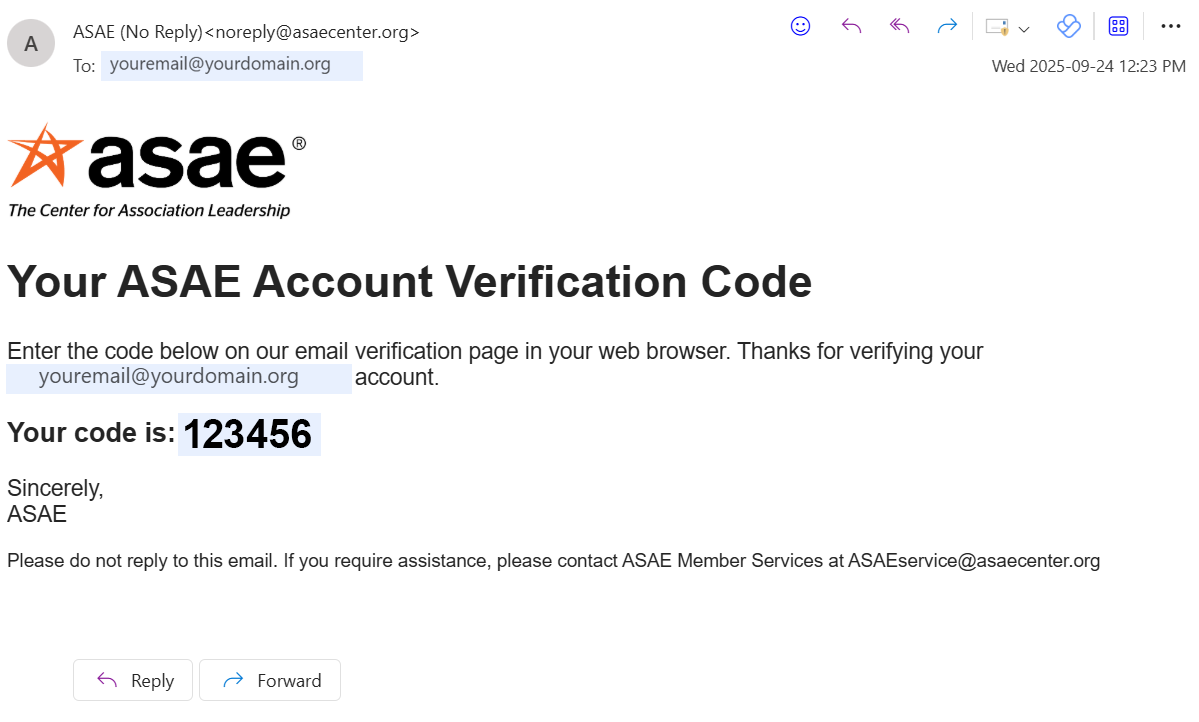
4. Check Your Email for the Verification Code
Find the email with your verification code, copy it, and paste it into the form from Step 3.
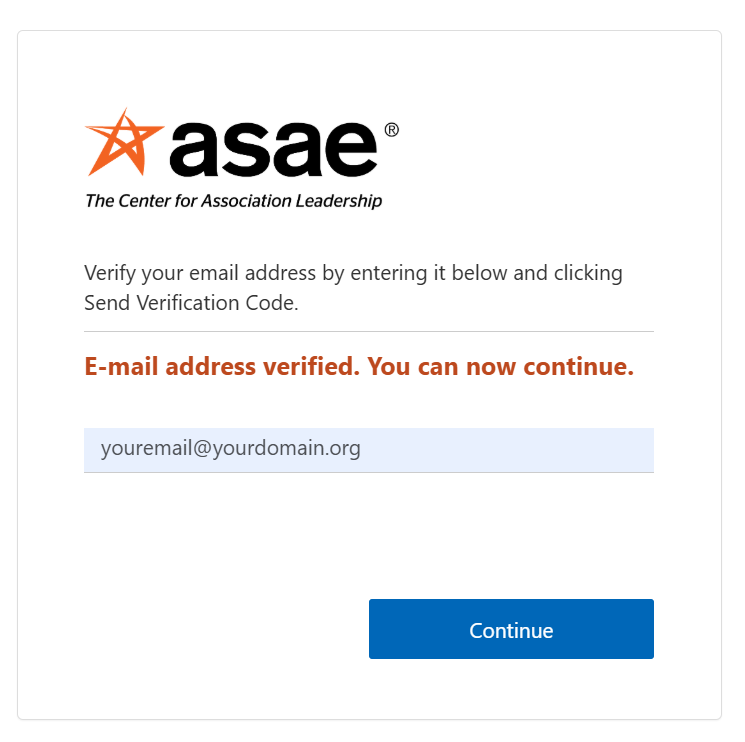
5. Your Email is Verified
Once your email is verified, simply tap/click Continue to proceed to the next step.
6. Enter a New Password
Enter a new password, paying attention to the requirements that will appear on screen as you type.
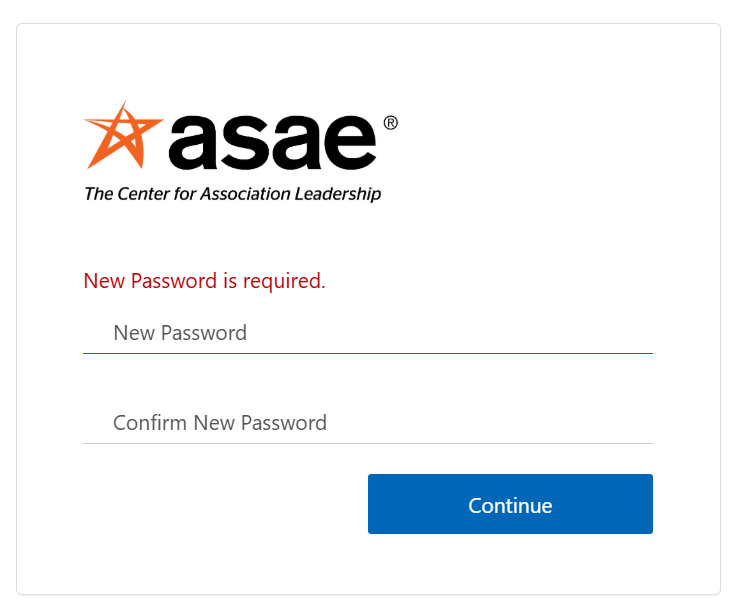
7. Re-enter Your Password to Complete the Process
Finally, re-enter your password to be fully logged in for the first time.
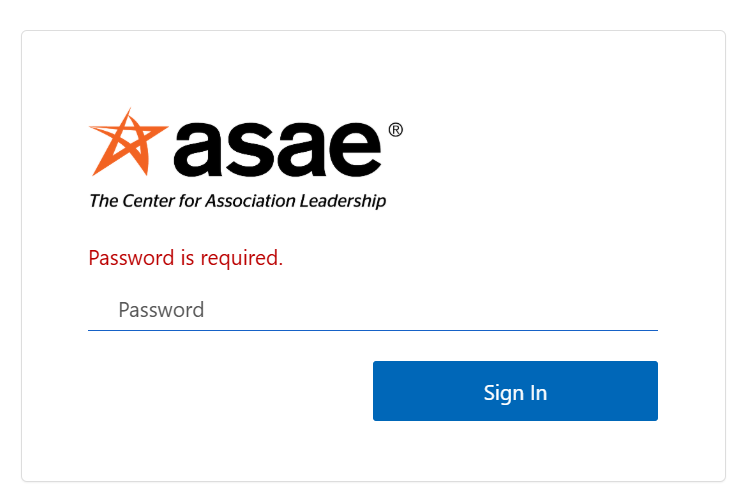
After you complete all these steps, you will only need to log in with your email and password in the future, which will keep you logged in across ASAE sites.
If you have any questions or concerns, please contact ASAE Member Services.